
Edit Text in Image with AI for Flawless Social Posts
Fix any text on your images in seconds. Keep the original style while you update captions, headlines, and screenshots for every social channel.

Why creators choose Edit Text in Image by ImagenX
Match the original style automatically
With ImagenX Edit Text in Image, you can change any words on your photo while the AI keeps the same font, color, and layout, so the final image looks untouched and professional. Instead of manually masking and repainting, you just describe what you want changed and let the tool rebuild the text for you, which is ideal when a social post is already performing and you only need a quick text fix.

Fix typos without re-uploading
When you accidentally publish a post or an ad with a typo in the headline, Edit Text in Image lets you correct it directly on the image instead of rebuilding the design from scratch. Upload the original visual, edit the text area, and export a clean version in a few clicks, so your audience sees a polished result while you keep your content calendar moving on schedule.

Localize visuals for every market
If you run campaigns across different languages, Edit Text in Image helps you quickly replace English text with localized copy on your existing visuals. You can keep the same layout and brand feel while changing only the words, which saves countless hours versus asking a designer to recreate each version and makes it realistic to A/B test local messages per region.

Refresh old assets for new campaigns
Instead of letting old creatives sit unused, you can bring them back by editing their text directly in the image. Swap outdated discounts, dates, or hooks with new copy while preserving the background, product, and overall vibe, making Edit Text in Image a simple way to extend the life of your best-performing visuals and squeeze more value from every shoot or design sprint.





How to use Edit Text in Image step by step
Follow these simple steps to edit text in any image online using ImagenX, from upload to download.
Upload your image with text
Upload the image that contains the text you want to change, such as a screenshot, social media post, product banner, or flyer. Edit Text in Image works best when your picture is clear and high quality, so try to use the original file when possible and zoom in on the area you plan to edit.
Describe the text changes
Highlight the part of the image where the current text appears and describe what the new text should say. You can mention style hints, such as keeping the same font or color, to guide the Edit Text in Image AI so it can rebuild the words in a way that feels natural and on-brand.
Generate, review, and download
Click to generate the edited image and review it at full zoom to make sure spacing and edges look clean. If you want a tweak, adjust your prompt and run another edit, then download the final version and publish it directly to your social channels, website, or ad manager.
AI Tools & Effects
Transform your images with powerful AI tools and creative effects
 new
newBing Image Creator
Microsoft Designer-like image creation for ads, posts, and mockups.

AI Font Generator
Generate stylish lettering and logo text with AI typography.
 new
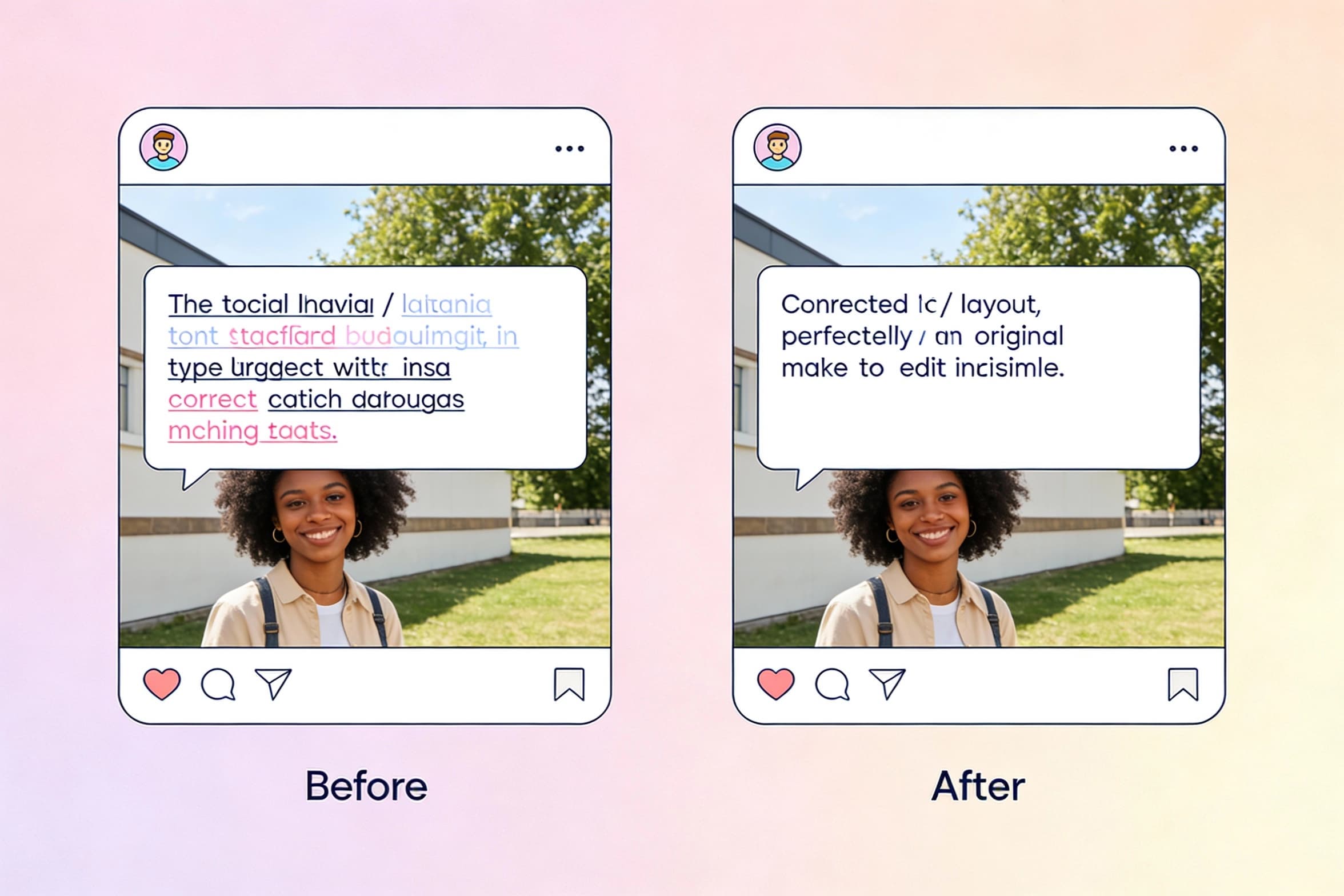
newEdit Text in Image
Select text inside a photo and replace it seamlessly with new wording.
 new
newAI Image Combiner
Blend people, objects, and backgrounds from multiple photos into one shot.
Edit Text in Image: Frequently asked questions
Get detailed answers about how Edit Text in Image works, what it is best for, and how to use it safely in your creative workflow.